
Google Shopping can place your products directly in front of people who are actively searching for something to buy. Instead of displaying a conventional text advert, Google can show the product image, title, price, retailer and other useful information before the customer visits your website.
However, setting up Google Shopping involves more than creating a campaign in Google Ads.
Before your products can appear, Google needs to understand:
Who the retailer is
What products are being sold
Whether the prices are accurate
Whether the products are available
How delivery and returns work
Whether customers can complete a secure purchase
Whether the website and product data are consistent
Google Shopping also differs from a conventional Search campaign because you do not ordinarily select positive keywords. Google primarily uses your Merchant Center product data and website information to determine which searches are relevant to each product.
This guide provides a practical Google Shopping setup checklist for companies launching their first campaign. It concentrates on preparing the website, checkout, product feed, Merchant Center account and conversion tracking—not on advanced campaign optimisation.
How Google Shopping Is Set Up
A basic Google Shopping implementation has four connected components:
Your ecommerce website
Google Merchant Center
A product data source or feed
Google Ads and purchase-conversion tracking
Your website contains the products and processes the purchases. Merchant Center receives and validates your product information. Google Ads uses the approved products within a Shopping or Performance Max campaign. Conversion tracking reports the resulting orders and revenue.
All four components need to work together.
A technically valid advert cannot compensate for an incomplete checkout. Likewise, a well-designed website cannot enter Shopping auctions if Google cannot understand or approve its product data.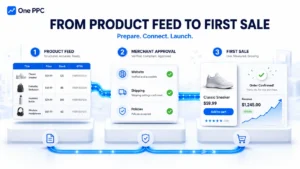
Step 1: Confirm That the Website Is Ready
Google expects Shopping advertisers to operate a functional online shop where customers can purchase the advertised products directly.
Do not submit an unfinished website for review.
Before opening Merchant Center, confirm that:
The website is live
The domain is correct
The website uses HTTPS
Products can be added to the basket
Customers can complete checkout
Product prices are visible
Product availability is accurate
Business contact information is available
Delivery information is published
Returns and refunds information is published
Terms and conditions are published
The privacy policy is published
There is no dummy or placeholder content
Important links work correctly
The website works on mobile devices
Google may automatically inspect the website, and accounts can also be subject to manual review.
An incomplete store, inconsistent business information or non-functional checkout can delay approval and, in more serious cases, contribute to an account suspension.
Step 2: Add Clear Business and Contact Information
Customers should be able to identify who they are buying from and how to contact the business.
Provide at least one clearly available contact method. This could include:
Telephone number
Email address
Contact form
Business social-media profile
For a stronger and more transparent setup, consider displaying:
Legal or trading name
Business address
Telephone number
Customer-service email address
Contact form
Business hours
Company registration information
VAT number where applicable
The business information displayed on the website should be consistent with the details supplied to Merchant Center, payment processors and other business profiles.
Google does not universally require every retailer to publish every possible contact method, maintain social profiles or display an address that appears on Google Maps. However, clear and consistent business information can reduce uncertainty for both customers and Google’s review systems.
Google’s website guidance requires contact information to be clearly available and provides a telephone number, email address, contact form or social business profile as possible examples. Google Merchant Center website guidelines
Business Information Checklist
Before proceeding, confirm that:
The correct business name is displayed
At least one genuine contact method is easy to find
Contact details are consistent throughout the website
Merchant Center will use the same business details
The website does not make misleading claims about the company
Social icons lead to genuine profiles where displayed
Business registration details are accurate where displayed
Step 3: Publish the Required Customer Policies
Important commercial policies should be clear, detailed and easily accessible.
The website footer is normally the most reliable location because it makes policy links available across the website. Relevant links should also remain accessible during checkout.
Returns and Refunds Policy
The returns and refunds policy should explain:
Whether returns are accepted
The circumstances under which products can be returned
The return window
Acceptable product conditions
How a customer starts a return
Available return methods
Who pays the return costs
Whether a restocking fee applies
Whether exchanges are accepted
How long refunds take
How refunds are issued
Any legitimate product exclusions
Even if the business does not accept returns, the policy should state this explicitly.
The policy should remain publicly accessible without requiring the customer to create an account, sign in or submit personal information.
The website policy must also be consistent with the return information entered in Merchant Center. Google can show return information alongside product listings, so inconsistencies can create problems. Google’s return-policy requirements
Delivery Policy
The delivery policy should explain:
Regions and countries served
Available delivery methods
Delivery prices
Free-delivery thresholds
Dispatch times
Estimated delivery times
Order cut-off times
Tracking arrangements
Product or location restrictions
Customs or import charges
What happens when an order is delayed or lost
Avoid vague claims such as “fast delivery” without providing a reasonable timeframe.
Terms and Conditions
The terms and conditions should explain the commercial relationship between the retailer and customer.
They will commonly cover:
Ordering
Pricing
Payment
Order acceptance
Delivery
Cancellations
Returns
Product information
Customer responsibilities
Intellectual property
Liability
Applicable law
The exact content should reflect the business, products and countries being served.
Privacy and Cookie Policies
The privacy policy should explain:
What personal information is collected
Why it is collected
How it is used
How long it is retained
Which service providers receive it
What rights customers have
How customers can contact the business about their data
The cookie policy and consent mechanism should reflect the tracking and advertising technologies actually used on the website.
Payment Information
A separate payment-policy page is not a universal Merchant Center requirement, but payment arrangements should be clearly explained.
Customers should be able to understand:
Which payment methods are accepted
Which currencies are supported
When payment is collected
Whether finance or instalments are available
Whether recurring payments apply
How refunds are issued
Whether additional charges could apply
Policy Checklist
Before submitting the website, confirm that:
A returns and refunds policy is published
The return window is stated
Return methods and costs are explained
Refund processing times are explained
A detailed delivery policy is published
Delivery costs and times are explained
Terms and conditions are published
A privacy policy is published
Cookie information is available
Payment arrangements are explained
Policy links are included in the footer
Relevant links remain accessible during checkout
Website policies agree with Merchant Center settings
A standalone disclaimer page can be appropriate for regulated or specialist products, but it is not a universal Google Shopping requirement.
Step 4: Check Every Product Landing Page
Each product submitted to Merchant Center needs a suitable landing page.
The feed URL should lead directly to the advertised product. It should not lead to:
The homepage
A broad category
A search-results page
An unrelated product
A lead-generation form
A page that requires the customer to contact the company for a price
The customer should be able to purchase the advertised product directly from the landing page and checkout.
Essential Product Information
Each product page should clearly show:
Product title
Product image
Product description
Product price
Currency
Availability
Condition where relevant
Variant selection
Add-to-basket or purchase button
Important information should be easy to identify without excessive searching or scrolling.
It is good conversion practice to place the title, main image, price, availability and purchase button near the top of the page. However, it is too broad to say that every required element must always appear above the fold.
Ensure the Feed and Page Describe the Same Product
The product information submitted to Merchant Center should agree with the information visible on the landing page.
Check that the following values match:
Product identity
Variant
Colour
Size
Image
Price
Sale price
Currency
Availability
Condition
If the feed advertises a blue size-nine shoe, the landing page should load with that specific variant selected or make its associated price and availability completely clear.
Avoid Location-Based Price Changes
Do not automatically replace the submitted price according to the visitor’s detected IP address.
Google’s crawler may access the page from a different location and find a price that does not match the submitted product data.
For international selling, use stable country or language URLs and the appropriate Merchant Center country settings.
Product Landing-Page Checklist
Review each product template and confirm that:
The feed URL leads directly to the product
The title accurately identifies the product
The main image shows the correct product
The product description is useful
The price is clearly visible
The currency is clear
The availability is accurate
The correct variant can be selected
The submitted variant is preselected where possible
The product can be added to the basket
Delivery information is accessible
Returns information is accessible
The page works on mobile
Pop-ups do not obstruct the purchase controls
The back button works normally
The page can be accessed by Google
Location scripts do not change the submitted price
Structured data matches the visible information
Step 5: Check Product Pricing and VAT
Price accuracy is one of the most important parts of Google Shopping setup.
For a UK consumer Shopping campaign, the submitted price should include VAT where applicable. The same VAT-inclusive price should appear on:
The product feed
The landing page
The basket
The checkout
If a product is submitted at £100, a customer should not reach checkout and discover that the actual price is £120 after VAT.
Google’s tax rules differ between countries. Do not assume the UK approach applies globally.
Make the Consumer Price Prominent
Some websites show multiple prices, such as:
VAT-inclusive price
VAT-exclusive price
Trade price
Recommended retail price
Member price
Sale price
The price submitted to Google should be clearly identifiable and should represent what an ordinary eligible customer will pay.
Do not make a lower, unavailable or VAT-exclusive price more prominent than the actual consumer price.
Check Sale Prices
When advertising a temporary reduction, submit:
The ordinary price in
priceThe reduced price in
sale_priceThe sale period in
sale_price_effective_date
The landing page should show the same active sale price.
Do not describe an item as reduced throughout the year if the supposed original price is not genuine. Misleading sales and fabricated reference prices can create Merchant Center and consumer-law problems.
Price Checklist
Before submission, confirm that:
UK consumer prices include VAT where applicable
Feed and website prices match
The basket uses the same price
The checkout uses the same price
Currency values match
The consumer price is prominent
VAT-exclusive prices do not mislead consumers
Sale prices are genuine
Sale effective dates are correct
Member prices are not submitted as ordinary prices
Mandatory charges are disclosed
Minimum purchase quantities are priced correctly
Minimum order values are configured separately
Google provides detailed country and product-specific rules within its current price specification.
Step 6: Test the Complete Checkout
A product may have an excellent feed and landing page but still be rejected or fail commercially if customers cannot complete the transaction.
Place test orders before submitting the account for review.
Secure Personal Information
Pages collecting personal or payment information must use HTTPS with a valid SSL certificate.
This includes pages collecting:
Name
Email address
Telephone number
Billing address
Delivery address
Card or payment information
Check for insecure scripts, images or embedded content that could create browser warnings.
Offer a Conventional Payment Method
Google requires at least one conventional payment method to be available during checkout.
Examples include:
Credit or debit card
Invoice
Payment on delivery
It is therefore inaccurate to say that every Merchant Center retailer must accept both credit and debit cards. The requirement is to provide at least one recognised conventional payment option.
Payment icons can improve customer confidence, but only display payment methods that are genuinely available.
Display the Full Cost Before Purchase
Before the customer places the order, the checkout should clearly show:
Products
Quantities
Product totals
Discounts
Delivery charges
Taxes
Mandatory fees
Recurring charges
Final order total
Do not introduce unexpected processing, handling or service charges at the final stage.
Make Policies Accessible
Customers should be able to reach the relevant:
Delivery policy
Returns policy
Privacy policy
Terms and conditions
Contact information
These links should remain clear during checkout.
Google does not publish a universal rule prohibiting every terms-and-conditions checkbox. Where a checkbox is used, it should be legitimate, clear and not create a misleading or unnecessary barrier.
Test More Than One Checkout Route
A single successful test order may not identify every problem.
Test:
Desktop checkout
Mobile checkout
Guest checkout
Account checkout
Different delivery regions
Different payment methods
Discount codes
Sale products
Product variants
Out-of-stock products
Failed payments
Order-confirmation pages
Confirmation emails
Refund procedures
Google requires users to be able to add products to the basket and complete checkout successfully. Google’s checkout requirements and best practices
Checkout Checklist
Before proceeding, confirm that:
The checkout uses HTTPS
The SSL certificate is valid
Customers can add products to the basket
Basket quantities can be changed
Products can be removed
The correct variant enters the basket
Prices remain consistent
Discounts calculate correctly
Delivery charges are accurate
VAT and taxes are handled correctly
The final order total is visible
No undisclosed charges appear
At least one conventional payment method works
Payment options are explained
Policy links remain accessible
Guest checkout works where offered
Mobile checkout works
Failed payments are handled properly
The order-confirmation page works
Confirmation emails are sent
A real test order has been completed
Step 7: Configure Shipping Accurately
Delivery settings can be configured at Merchant Center account level or through product-level data.
The submitted cost should match what the customer sees on the website. If it is impossible to reproduce the website calculation exactly, Google recommends overestimating rather than underestimating the charge. Google’s shipping-settings guidance
Understand Which Setting Takes Priority
Product-level shipping values can override Merchant Center account-level delivery settings for the applicable product and destination.
This can create confusion when a merchant updates its account settings but an old product-level value continues to take precedence.
Check:
Account-level delivery policies
Product-level shipping attributes
Ecommerce platform integrations
Third-party feed-management rules
API updates
Use Shipping Labels Where Necessary
The shipping_label attribute can place selected products into special delivery groups, such as:
Heavy products
Oversized products
Free-delivery products
Refrigerated goods
Direct-from-manufacturer items
Collection-only products
Shipping Checklist
Before launch, confirm that:
Merchant Center contains a delivery policy
Delivery countries are correct
Delivery costs match the website
Costs are not underestimated
Free-delivery thresholds match
Delivery times are realistic
Dispatch times are accurate
Regional restrictions are configured
Minimum order values are declared
Oversized products have suitable rules
Product-level values do not cause conflicts
Mandatory handling charges are accounted for
International charges are explained
Step 8: Prepare the Product Data Feed
The product feed tells Google what you sell.
Required attributes depend on the product, category, country and advertising destination. Always compare the final data source with Google’s current product-data specification.
Common Core Product Attributes
Most ordinary products require or benefit from:
idtitledescriptionlinkimage_linkavailabilitypriceconditionbrandgtinmpngoogle_product_categoryproduct_type
Not every attribute is universally mandatory. For example, identifier requirements depend on whether a manufacturer assigned the applicable identifier.
Use a Stable Product ID
The product ID should be:
Unique
Stable
Consistent
Not reused for another product
A retailer’s SKU can work well when it satisfies these requirements.
Write Clear Product Titles
Product titles help Google understand which searches may be relevant. Include the most useful product information near the beginning.
A typical structure could be:
Brand + Product Type + Important Attribute + Colour + Size
For example:
Nike Air Max 90 Men’s Trainers – Black – UK Size 9
Avoid promotional language, keyword repetition and unnecessary capitalisation.
Write Useful Descriptions
Descriptions should explain the actual product, including:
Features
Materials
Intended use
Dimensions
Compatibility
Technical details
Included components
Do not fill descriptions with delivery offers, promotional slogans or unrelated keywords.
Submit Genuine Identifiers
If the manufacturer assigned a GTIN, submit it accurately.
Do not:
Invent a GTIN
Use the SKU as a GTIN
Reuse a GTIN
Submit a parent identifier for every variant
Use
identifier_existsto conceal missing data
Configure Product Variants
Use unique IDs for individual variants and an appropriate shared item_group_id.
Variant attributes may include:
Colour
Size
Material
Pattern
Gender
Age group
Capacity
The feed entry, image, price and landing-page selection should all describe the same variant.
Feed Checklist
Before publishing, confirm that:
Every product has a unique ID
IDs remain stable
Titles accurately describe the products
Important title information appears first
Descriptions contain useful product information
Links lead directly to product pages
Image links are accessible
Availability is current
Prices include the correct currency
UK consumer prices include VAT where applicable
Condition is accurate
Brand values are correct
GTINs are supplied where assigned
MPNs are supplied where applicable
Product categories are appropriate
Product Type hierarchies are consistent
Variants have unique IDs
Variant groups use appropriate item-group IDs
Apparel attributes are complete
Sale prices and dates are accurate
Shipping information is correct
The feed updates frequently enough
Step 9: Prepare Product Images
The main image appears directly within Shopping adverts and free listings, making it a critical part of both approval and customer response.
The main image should:
Accurately show the product
Match the selected variant
Be clear and sharp
Use a supported file format
Be accessible to Google
Avoid promotional overlays
Avoid watermarks
Avoid artificial borders
Avoid placeholder content
A clean white or neutral background is often effective, although it is not universally mandatory.
People are also not prohibited from every image. Models and product-in-use photographs can be appropriate for apparel and other categories.
Check Current Image Dimensions
Until 31 January 2027, the older minimums remain:
250 × 250 pixels for apparel
100 × 100 pixels for most other products
From 31 January 2027, Google has announced a minimum of 500 × 500 pixels for all product images.
Google recommends images of 1500 × 1500 pixels or above for broader coverage and stronger presentation. Google’s current image requirements
Image Checklist
Before publishing, confirm that:
Every product has a main image
Images show the correct variant
Images are high resolution
New images meet the forthcoming 500 × 500 minimum
Images are not thumbnails enlarged artificially
Images contain no promotional text
Images contain no retailer watermark
Images contain no artificial border
Product-image URLs can be crawled
Additional images have been supplied where available
AI-generated images retain required source metadata
Step 10: Select a Product Data Source
Merchant Center supports several ways of adding products.
The best method depends on catalogue size, update frequency and technical resources.
Google Sheets
A Google Sheet may be suitable for a small and stable catalogue.
Advantages include:
Simple setup
Direct control
No development requirement
Disadvantages include:
Manual updates
Greater risk of outdated stock
Greater risk of pricing errors
Difficult scaling
It is generally most practical when there are relatively few products and infrequent changes.
Scheduled CSV, TSV or XML File
A scheduled file can work well when product information is generated automatically from the website or business database.
This requires a dependable process for keeping the file synchronised.
Ecommerce Platform Integration
Platforms such as Shopify and WooCommerce can connect through applications or plugins.
Do not assume that an automated connection creates a fully optimised feed. Check which fields are sent and how variants, identifiers, delivery and sale prices are handled.
Feed-Management Platform
A dedicated feed-management system can support:
Attribute mapping
Title rules
Product exclusions
Custom labels
Multiple countries
Scheduled updates
Feed-quality monitoring
This is often appropriate for larger or more complicated catalogues.
Merchant API
The Merchant API is suitable for larger or rapidly changing catalogues where prices and availability may need frequent updates.
It requires development knowledge or a compatible third-party platform.
Website Crawling
Google may discover product information by crawling a website. This can be useful as a fallback, but it may miss products or provide incomplete data.
A controlled product data source is generally preferable for a retailer that intends to invest seriously in Shopping.
Step 11: Create and Configure Merchant Center
Once the website and product data are ready, create or configure the Merchant Center account.
The setup normally involves:
Adding the business information
Claiming and verifying the website
Configuring target countries and languages
Adding delivery settings
Adding returns information
Connecting the product data source
Reviewing product diagnostics
Resolving warnings and disapprovals
Merchant Center Checklist
Confirm that:
The correct business name is entered
Contact details are correct
The correct website has been verified and claimed
The relevant countries are selected
The correct languages are selected
Delivery policies are configured
Return policies are configured
The primary product data source is connected
Products have been processed
Product diagnostics have been reviewed
Price mismatches have been corrected
Availability mismatches have been corrected
Identifier warnings have been reviewed
Image issues have been corrected
Policy issues have been investigated
The website and Merchant Center information agree
New accounts and products may be subject to automated and manual review. Review times vary, so do not plan a fixed launch date on the assumption that approval will always take exactly three working days.
Step 12: Add Product Structured Data
Structured data helps Google understand and validate the product information on the website.
Product and Offer structured data can include:
Product name
Description
Image
SKU
Brand
GTIN
Price
Currency
Availability
Condition
JSON-LD is commonly used because it can be easier to maintain than embedding microdata throughout the visible HTML.
The structured data must agree with:
Visible product information
Selected variant
Product feed
Basket price
Checkout price
Use Google’s Rich Results Test to validate representative products and variants.
Open Graph information can improve how product pages appear when shared on social platforms, but it does not replace Product structured data.
Structured Data Checklist
Confirm that:
Product structured data is present
Offer data is present
Prices match the visible page
Currencies match
Availability matches
Variant data is accurate
GTINs and SKUs are correct
The Rich Results Test returns no critical errors
Structured data updates with the product page
Automatic item updates are configured appropriately
Step 13: Link Merchant Center to Google Ads
Approved Merchant Center products need to be made available to the correct Google Ads account.
Confirm that:
Merchant Center is linked to the intended Google Ads account
The correct Merchant Center ID has been used
The connection has been accepted
The appropriate products are eligible
The correct country and feed label are available
The Google Ads account uses the correct billing profile
Account access has been granted to the appropriate users
Do not launch a campaign until the product source and target market have been checked carefully.
Step 14: Configure Purchase-Conversion Tracking
Purchase tracking should report not only that a sale occurred but also how much the order was worth.
At minimum, pass:
Purchase event
Transaction value
Currency
Unique transaction ID
The transaction ID helps Google deduplicate orders if the customer reloads the confirmation page.
Consider implementing:
Google Ads purchase tracking
Enhanced conversions
Consent Mode
Cart-data reporting
Server-side measurement
New-customer reporting
Place real test orders and confirm that:
One order creates one purchase conversion
The correct order value is passed
The correct currency is passed
The transaction ID is unique
Refreshing the page does not duplicate the order
VAT treatment is consistent
Delivery-value treatment is consistent
Discounts are reflected correctly
Consent choices are respected
Enhanced conversions are recording where implemented
Do not rely exclusively on a tag appearing in a browser debugger. Confirm that Google Ads receives and processes the conversion with the expected value.
Step 15: Complete the Final Pre-Launch Check
Before activating Google Shopping, complete one final end-to-end review.
Final Website Check
Website is live and secure
Business information is clear
Contact information is easy to find
Policy pages are complete
Footer links work
Products are directly purchasable
Mobile experience works
No important content is obstructed
Final Product Check
Titles are accurate
Descriptions are useful
Prices are correct
VAT is included where applicable
Availability is current
Images are compliant
Identifiers are correct
Variants are configured properly
Landing pages match the feed
Final Checkout Check
HTTPS works
A conventional payment method works
Delivery costs are accurate
The final total is disclosed
Policies remain accessible
Desktop checkout works
Mobile checkout works
A real test order has succeeded
Final Merchant Center Check
Website is verified and claimed
Business information is correct
Delivery settings are complete
Return settings are complete
Product data has processed
Diagnostics have been reviewed
Critical errors have been resolved
Products are approved or pending review
Final Google Ads Check
Correct accounts are linked
Purchase tracking has been tested
Revenue and currency are accurate
Transaction IDs are present
Correct products are included
Campaign location matches the delivery area
Initial budget is affordable
Account billing is active
What Happens After Products Are Submitted?
After Google processes the product data, each product may be:
Approved
Pending
Limited
Disapproved
A limited product may remain eligible in some contexts but lack recommended data or have restricted coverage. A disapproved product cannot appear in the affected destination until the issue is corrected.
Use Merchant Center diagnostics to identify:
Missing attributes
Invalid identifiers
Image problems
Price mismatches
Availability mismatches
Landing-page problems
Delivery issues
Policy violations
Correct the underlying website or data-source problem before requesting another review.
Avoid repeatedly requesting reviews without making material corrections. This can delay recovery and make it more difficult to understand the original cause.
Final Thoughts
A successful Google Shopping launch begins with preparation—not bidding.
Before creating the advertising campaign, ensure that:
The business is clearly identifiable
The website is trustworthy
Customer policies are complete
Product pages are accurate
Prices include the correct tax treatment
The checkout works securely
Delivery costs are correct
Product data is comprehensive
Merchant Center is configured properly
Purchase values are measured accurately
The product feed determines much of Google Shopping’s targeting, but the surrounding website and checkout determine whether Google can approve the products and whether customers will complete their purchases.
Taking time to complete the setup checklist properly creates a stronger foundation for future campaign optimisation, automated bidding and profitable ecommerce growth.